olla.talk Docs
User Guide
olla.talk is a messenger that translates every message automatically. You write in your language, and everyone in the room reads it in theirs. This guide covers the basics — and how to bring people into your conversations.
Quick start
Use the mobile app, or open olla.talk in your browser without installing anything. Already have an account? Log in with the same method to continue your conversations.
- Create a free account with Google, Apple, Kakao, or your email address.
- Click New chat to create a chat room.
- Click Copy link and send the link to anyone. They can join without signing up.
Getting started
Mobile app & browser
Choose how you want to use olla.talk:
- iPhone app: download OllaTalk from the App Store.
- Android app: download OllaTalk from Google Play.
- Browser: open olla.talk on a computer or phone. Chrome, Safari, Edge, Samsung Internet, and other up-to-date browsers are supported; installation is optional.
After installing the mobile app, open it and create an account or log in. Use the same sign-in method as on the web to sync your rooms and messages.
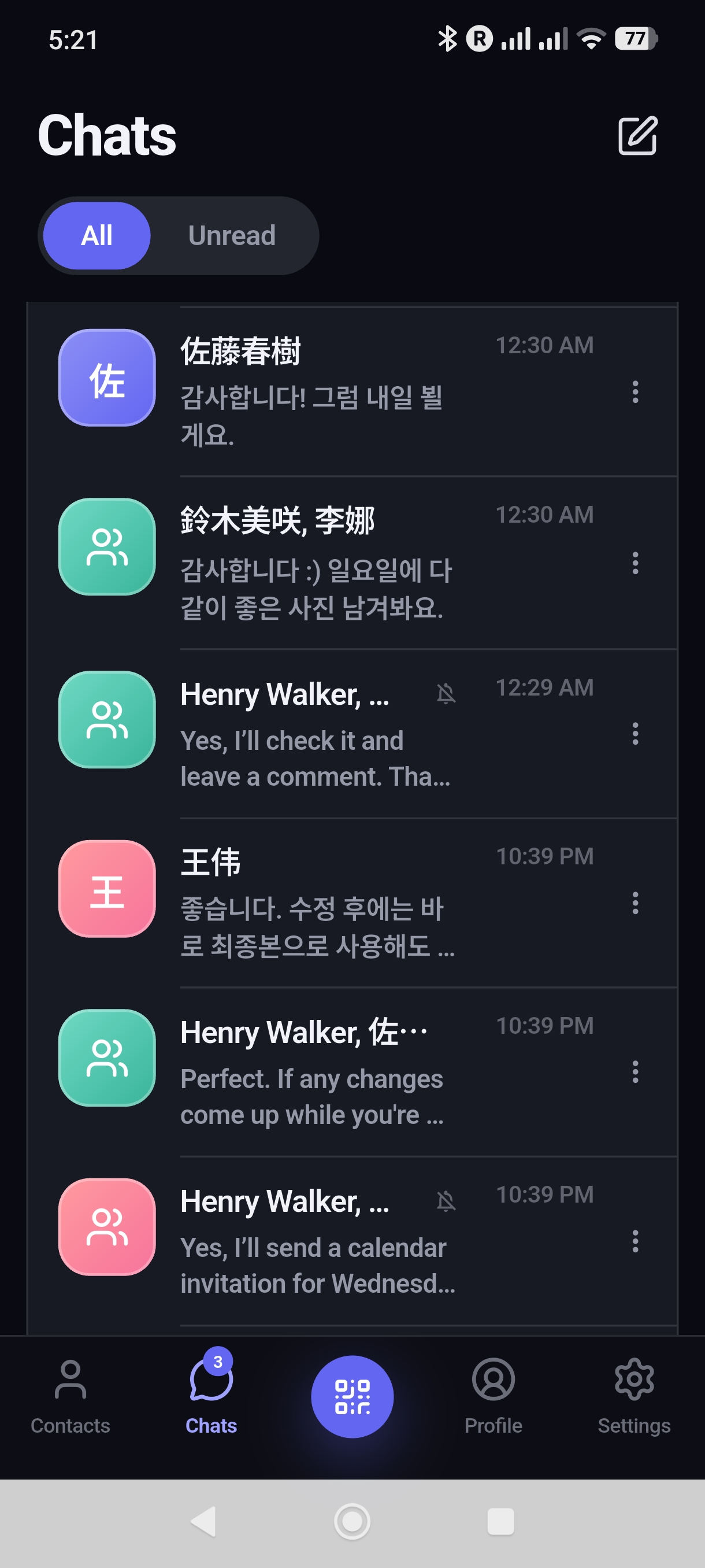
Capture instructions
Screenshot: mobile-rooms
App UI language: English
Screen path: Log in → chat list

1. Log in to the native OllaTalk app with a demo account.
2. Show 2–3 rooms with fictional names and short message previews, such as Alex, Mina and Team.
3. Keep the chat list heading, room rows, new-chat control and navigation visible. Close keyboards, menus and pop-ups.

Framing: full portrait screen of the mobile app. Use the same device and dark theme for all four shots. Do not add a device mockup or browser address bar. Keep the original resolution and use fictional names and conversations.
Save as: /docs/img/en/mobile-rooms.jpg
Delivery: original PNG or JPEG files are welcome. The current guide uses the supplied JPEG without resizing or retouching.
Home Screen web app (PWA)
You can also install the browser version as a Progressive Web App (PWA). Accept the browser's Install prompt when available. On iPhone or iPad, open olla.talk in Safari, choose Share → Add to Home Screen, then launch it from the Home Screen. This installs the web version, which is separate from the App Store or Google Play app. See Notifications for device requirements.
The native mobile apps require an account. To join as a guest without signing up or installing an app, open the invitation link in your browser and choose Join as guest.
Create an account
- Open the mobile app and choose sign up, or open the web sign-up page.
- Choose Google, Apple, or Kakao to sign up in one step — or sign up with your email address.
- With email, enter the 6-digit code we send you (valid for 30 minutes). Then set the name other people will see and a password of at least 8 characters.
Every new account receives 500,000 free credits for translation. See Credits & plans.
Your language setting decides which language you read messages in. You can change it anytime — see Language.
Log in & reset your password
Log in with the same method you used to sign up.
Forgot your password? Use the password reset option on the login page: enter your email, type the verification code we send, and choose a new password. For your security, resetting your password signs you out on your other devices.
Accounts created with Google, Apple, or Kakao don't have an olla.talk password. Just log in with the same button you used to sign up.
Chat rooms
Start a new chat
- Click New chat in the sidebar.
- A room is created right away and the invite panel opens, so you can invite people immediately. See Inviting people.
You become the host of every room you create. The room title is made from the participants' names, so you don't need to name it.
The host pays the translation credits for everyone in the room, including guests. See How credits work.
Chat with a contact
Open the Contacts tab in the sidebar, pick a person, and start a chat. If you already have a one-on-one chat with them, olla.talk opens that one instead of creating a new room.
Leave a chat
Open the room and choose Leave chat.
- Members and guests: you'll need the invite link to come back.
- Host: leaving closes the room for everyone, and nobody can continue the conversation. If you only want to step away, just close the room instead.
Inviting people
You can invite anyone — people who don't have an olla.talk account can join as guests without signing up. Choose the way that fits:
Share an invite link or QR code
- Open the room and click Invite at the top of the room.
- Click Copy link. The link looks like
https://olla.talk/i/a1b2c3. - Paste it into any messenger, text message, or email and send it.
- With someone in person? Click QR code instead and let them scan it with their phone camera.

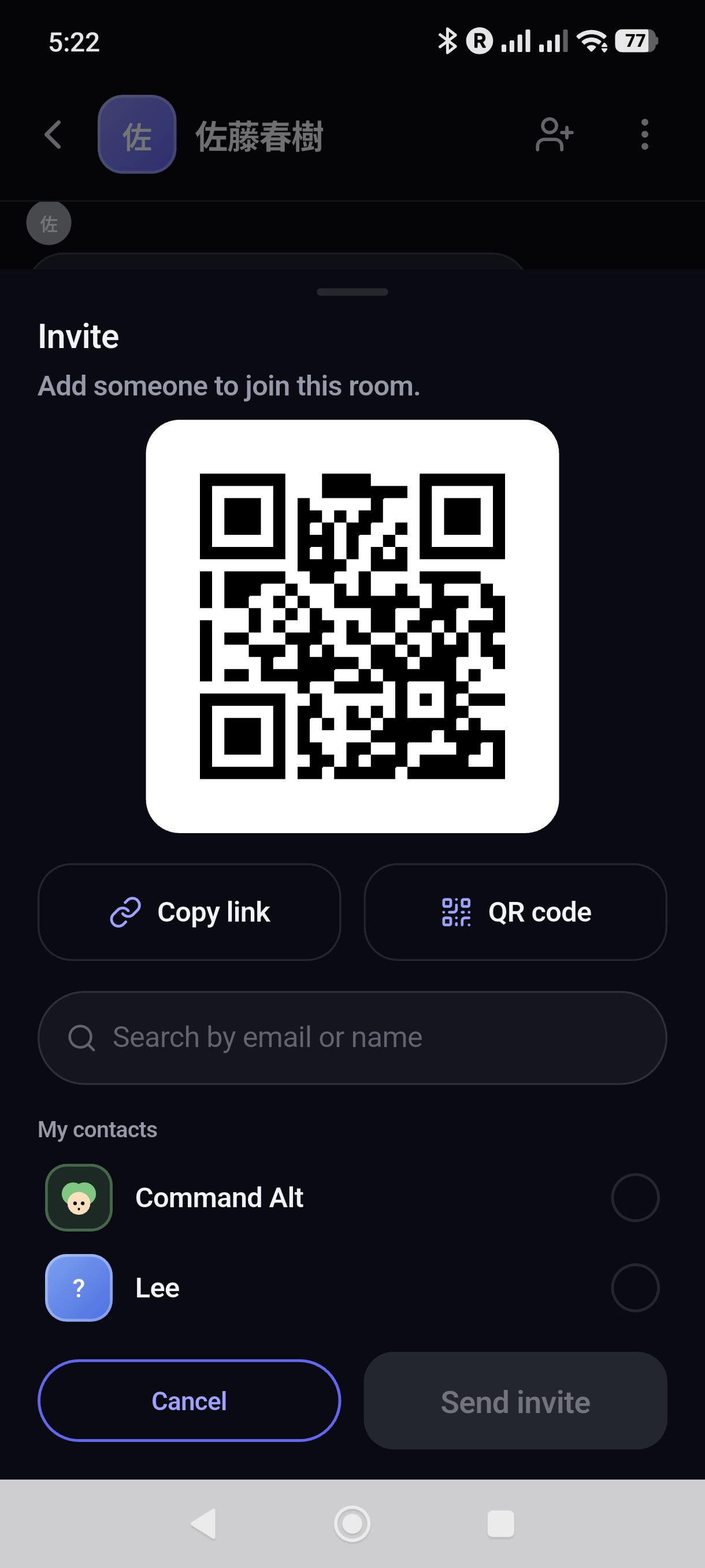
Capture instructions
Screenshot: mobile-invite
App UI language: English
Screen path: Open a demo room → Invite → QR code

1. Open a demo room in the native app and open its invitation panel.
2. Tap QR code so the code is expanded; keep Copy link and QR code controls visible together.
3. Expand the panel or scroll as needed. Close the keyboard and do not cover the QR code with a menu. Use a demo-room invitation, not a private conversation.

Framing: full portrait screen of the mobile app. Use the same device and dark theme for all four shots. Do not add a device mockup or browser address bar. Keep the original resolution and use fictional names and conversations.
Save as: /docs/img/en/mobile-invite.jpg
Delivery: original PNG or JPEG files are welcome. The current guide uses the supplied JPEG without resizing or retouching.
When you create a new chat, this panel opens automatically.
Anyone who has the link can join the room. Invite links currently don't expire and can't be reset, so share them only with people you want in the conversation. When someone joins, everyone sees a notice like “Sam joined the chat.”
What the invited person sees
When someone opens your link, they see who invited them (“Invitation from Alex”). What happens next depends on who they are:
| Situation | What they see | Result |
|---|---|---|
| No account, not logged in | A Display name field, a language selector, and Join as guest | Joins instantly as a guest — no sign-up needed |
| Has an account, not logged in | A Sign in to join link | Logs in, comes back to the invite, and joins with their account |
| Already logged in | “Joining as their name” and a Join button | Joins as a member with their account |
| Already joined as a guest on this browser (within 24 hours) | “You're already joined as name” and Go to chat room | Goes straight back to the room |

If the link is mistyped or the room no longer accepts people, the page shows “Invite link not found” or an error instead. Ask the host for a new link from an active room.
Joining as a guest
Guests can chat right away without creating an account:
- Open the invite link.
- Enter the name other people will see (up to 100 characters).
- Choose your language — messages will be translated into it.
- Tap Join as guest.
Here's how guests compare with members who have an account:
| Guest | Member (account) | |
|---|---|---|
| Sign-up | Not needed | Free account |
| Rooms | Only the room they were invited to | All their rooms, with a room list |
| How long access lasts | 24 hours, then rejoin with the same link | Stays logged in |
| Create rooms | No | Yes |
| Contacts, settings, billing | Not available | Available |
| Change language | Yes | Yes |
| Translation cost | Paid by the room's host | Paid by the room's host |
A guest session lasts 24 hours and stays in the browser where the guest joined. To keep chatting across days and devices, create a free account and join with Sign in to join.
Invite people who already use olla.talk
If the person already has an account, you can send an invitation straight to their olla.talk inbox.
Sending an invitation (host)
- Open the room and click Invite.
- Under My contacts, click Invite next to each person you want to add. For someone who isn't in your contacts yet, type their full email address in the search box and click Invite.
- Click Send invitations. You can invite several people at once.
Receiving an invitation
- They see a notification such as “Alex invited you to room”, and a badge appears on the Invitations inbox.
- They open Invitations and choose Accept or Decline.
- After accepting, they join the room, and you're added to each other's contacts.

Email search needs the complete, exact address, and only finds people who already have an account. For everyone else, send the invite link. People who are already in the room show “Already a member”.
Opening an invite on Android
On Android phones, the invite page may first offer to open the invitation in the olla.talk app. Choose Open in olla.talk app if you have the app, or Continue in browser to join on the web. The native app requires you to log in; to join as a guest, choose Continue in browser.
Contacts
Your contacts make it easy to invite the same people again.
- Added automatically — when you accept an invitation or chat with someone who has an account, you're added to each other's contacts. Guests aren't added.
- Add by email — in the Contacts tab, choose Add a contact, enter their email, and click Send request. They can accept or decline. If the email isn't registered yet, you can send them an invite email with Send invite email.
- Nicknames — use Edit nickname to save a name that only you see.
- Hide — use Hide to remove someone from your list.
Chatting & translation
Send messages and photos
- Type your message and press Enter to send. Press Shift + Enter for a new line. A message can be up to 4,000 characters.
- To send a photo, click the paperclip button or drag and drop an image into the chat. JPG, PNG, GIF, and WebP images up to 10 MB are supported.
- You can react with emoji and copy a message's original text, its translation, or both.
How translation works
- Each message is translated automatically into the language of every other person in the room.
- People who use the same language as you see your message exactly as you wrote it.
- Your own messages always appear as you wrote them.
- Photos, messages with only numbers or emoji, and room notices (such as “Sam joined the chat.”) aren't translated.
- If a translation fails for some reason, the message is still delivered.

Show original & display mode
- Click Show original under a message to see exactly what the sender wrote. Click Hide original to fold it again.
- To choose the default, go to Settings → Default display mode:
- Translation only (default) — shows only the translated message.
- Show with original — shows the original above the translation in smaller text.
- For a message that's tricky to understand, use Deep translate on that message. It uses a more capable AI model for a more careful translation, and uses more credits.

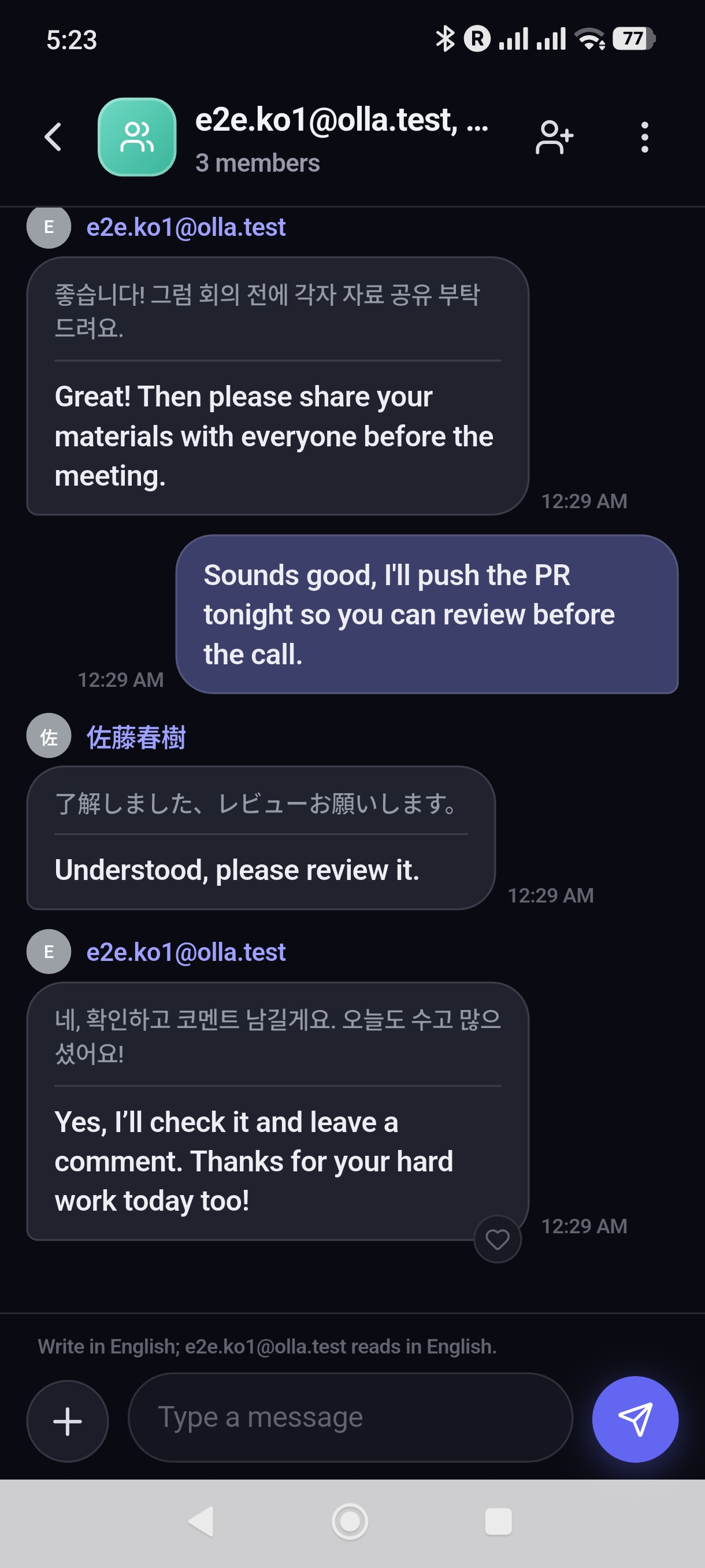
Capture instructions
Screenshot: mobile-chat-original
App UI language: English
Screen path: Settings → default display mode → show with original → demo room

1. Choose Show with original in the native app’s default display mode settings.
2. Open a room with an English-speaking demo account and a Korean-speaking demo account.
3. Show 3–4 short everyday messages. Include a received Korean message with its English translation, such as “회의는 오후 3시에 시작해요.” / “The meeting starts at 3 PM.”
4. Keep the room header, message bubbles and composer visible. Close the keyboard and message menus.

Framing: full portrait screen of the mobile app. Use the same device and dark theme for all four shots. Do not add a device mockup or browser address bar. Keep the original resolution and use fictional names and conversations.
Save as: /docs/img/en/mobile-chat-original.jpg
Delivery: original PNG or JPEG files are welcome. The current guide uses the supplied JPEG without resizing or retouching.
Settings
Language
- One setting controls both the language of the app's menus and the language you receive messages in.
- Change it with the language selector at the top of the app. Guests can change it too.
- The new language applies to new messages. Messages you already received keep their earlier translation.
Translation is supported in 101 languages, including Korean, English, Vietnamese, Japanese, Chinese, Thai, Spanish, Indonesian, Filipino (Tagalog), German, and French.
Notifications
Mobile app
In the mobile app, open Settings, turn on Push notifications, and allow notifications when your device asks.
- iPhone: if permission was denied, open iOS Settings → Notifications → OllaTalk and enable Allow Notifications. Adding the website to your Home Screen is not required for the App Store app.
- Android: open system Settings → Apps → OllaTalk → Notifications and allow notifications. Menu names may vary by device.
You can also open your device's notification settings from the mobile app's notification settings.
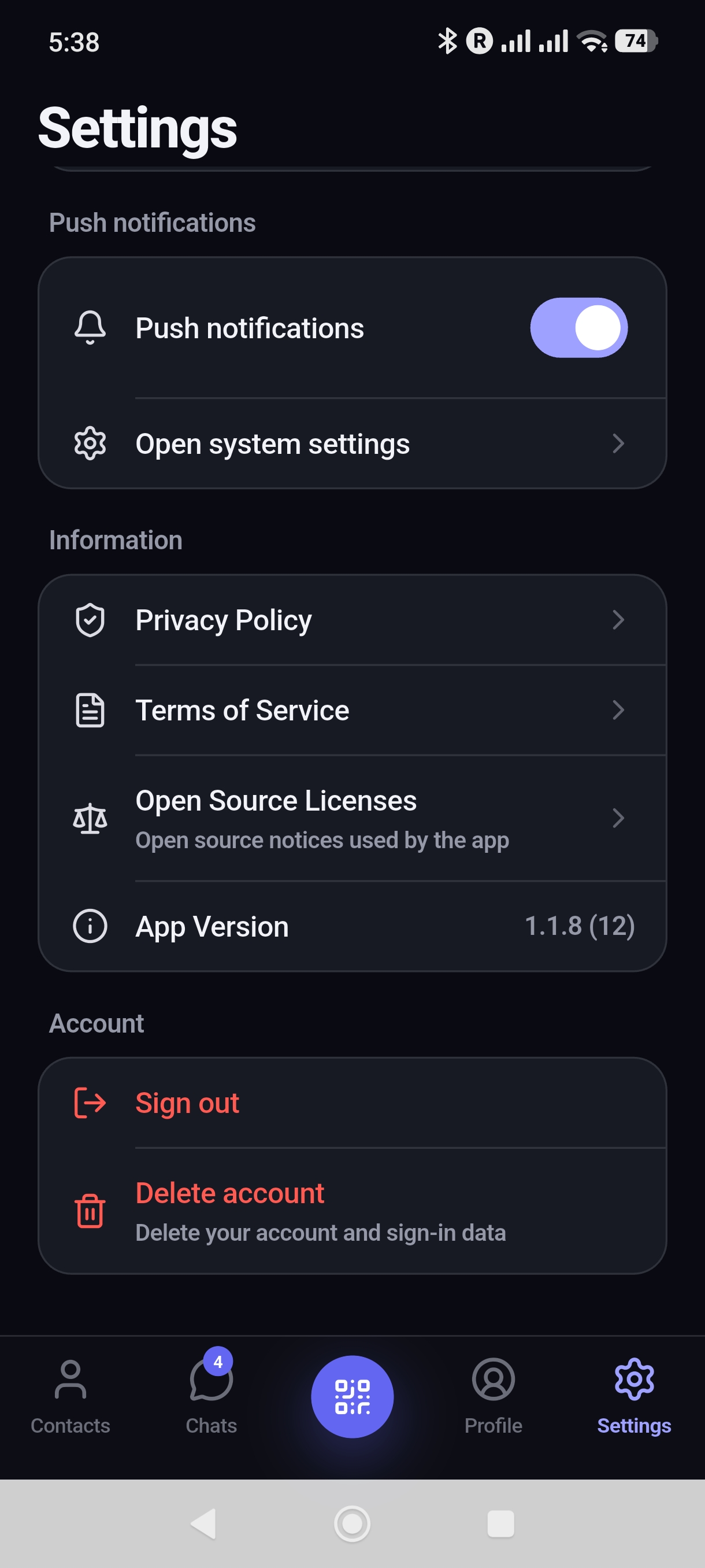
Capture instructions
Screenshot: mobile-push-settings
App UI language: English.
Screen path: Native app → Settings → Push notifications

1. Allow OllaTalk notifications in the device settings, then return to the native app.
2. Open Settings and turn Push notifications on.
3. Show the section heading, enabled switch and Open system settings row together.
4. Stay inside OllaTalk: do not capture a browser/PWA or the device’s system settings page. Scroll past account details if needed.

Framing: full portrait screen of the mobile app. Use the same device and dark theme for all four shots. Do not add a device mockup or browser address bar. Keep the original resolution and use fictional names and conversations.
Save as: /docs/img/en/mobile-push-settings.jpg
Delivery: original PNG or JPEG files are welcome. The current guide uses the supplied JPEG without resizing or retouching.
Browser and Home Screen web app (PWA)
- Click Turn on on the “Get notified about new messages” banner, or switch on Push notifications in Settings. When your browser asks for permission, choose Allow.
- iPhone and iPad PWA: web push requires iOS or iPadOS 16.4 or later and a Home Screen web app. In Safari, choose Share → Add to Home Screen, open olla.talk from that icon, then enable notifications. A regular Safari tab cannot receive these web push notifications. This requirement applies only to the PWA.
- Android and desktop browsers: allow notifications for olla.talk in a browser that supports web push. If an Install prompt is available, you can also install the PWA.
- In the web version, Settings also lets you turn Notification sound and Desktop notifications on or off.
Enable notification permissions separately for the native app and each browser or PWA installation you use. Check Do Not Disturb or Focus if alerts are silenced. You won't get a push notification for the room you're currently looking at; while the native app is open and connected, new messages may appear as in-app notifications instead of system alerts.
Profile
Open the profile menu (your avatar) and go to Settings to change your display name and avatar. You can pick a character and colour, or upload a photo (JPG, PNG, or WebP up to 2 MB). Your email address can't be changed.
Credits & plans
How credits work
- Translation uses credits: 1 AI token = 1 credit. Longer messages, and rooms with more languages, use more credits because each message is translated into each language.
- Every new account starts with 500,000 credits.
- The host pays. All translation in a room — including messages from members and guests, and Deep translate — is charged to the host's credits. Joining someone else's room doesn't use your credits.
- Check your balance in the profile menu under Credits balance.
- If the host runs out of credits, new messages can't be sent in that host's rooms, and people see “The host has insufficient credits.” The balance never goes below zero.
Plans & payments
For current plans and prices, see Pricing on our homepage. Payment, cancellation, and refund rules are described in our Payment & refund policy. If you have questions about a payment, email support@olla.talk.
Frequently asked questions
General
Is olla.talk free to use?
Yes, you can start for free. Every new account receives 500,000 credits, which are used for translation. People you invite can join as guests at no cost to them — translation in your rooms is paid from your credits as the host.
For current plans, see Pricing.
Do I need to install an app?
No. olla.talk works in any up-to-date browser on computers and phones — Chrome, Safari, Edge, Samsung Internet, and others.
Native mobile apps are optional: install OllaTalk from the App Store on iPhone or Google Play on Android, then log in or create an account.
For an app-like browser experience, add olla.talk to your home screen as a PWA. When the browser offers Install, accept it; on iPhone, use Share → Add to Home Screen in Safari. See Mobile app & browser.
What is the difference between the mobile app and the PWA?
The native app is downloaded from the App Store or Google Play and requires an account. A PWA is the browser version installed through the browser or added to your Home Screen. You can also use the website directly without installing either.
Log in with the same account to keep your rooms and messages in sync. Guest participation is available on the web only. Notification permissions are separate: the native app uses app permissions, while the PWA uses web push. On iPhone and iPad, the PWA needs iOS or iPadOS 16.4 or later and must be launched from the Home Screen. See Notifications.
Which languages are supported?
Translation is supported in 101 languages, including Korean, English, Vietnamese, Japanese, Chinese, Thai, Spanish, Indonesian, Filipino (Tagalog), German, and French.
Each person picks one language. Everyone in a room can use a different language — each person reads every message in their own.
Can I chat with a group, not just one person?
Yes. Invite as many people as you like to a room, and each of them reads the conversation in their own language. Keep in mind that a room with more languages uses more credits, because each message is translated into every language in the room.
Invitations & guests
Do the people I invite need an account?
No. When someone opens your invite link, they can enter a name, choose a language, and tap Join as guest. No sign-up, email, or app install is needed. See Joining as a guest.
Does an invite link expire? Can I reset it?
Invite links currently don't expire, and they can't be reset or turned off. Anyone who has the link can join the room, so share it only with people you want in the conversation.
If a link has spread further than you wanted, start a new chat and share the new room's link with the right people.
How do I know who has joined my room?
Every time someone joins or leaves, a notice appears in the conversation, such as “Sam joined the chat.” or “Sam left the chat.” Guests are labeled as guests.
How long can a guest stay in a room?
A guest session lasts 24 hours. After that, the guest sees a message that the session has expired and can join again by opening the same invite link.
Guest access is tied to the browser where they joined, and only to that one room. To keep conversations across days and devices, guests can create a free account.
Can a guest switch to a regular account?
Yes. The guest creates a free account (or logs in), then opens the same invite link and chooses Join. They'll be in the room with their account from then on. Messages they sent as a guest stay in the conversation under their guest name.
Who pays for translating guests' messages?
The host of the room. All translation in a room is charged to the host's credits, whether the message comes from the host, a member, or a guest. Guests never pay anything.
I sent an in-app invitation, but the other person didn't get it.
Check the following:
- They need an olla.talk account with the exact email address you searched for.
- Ask them to open the Invitations inbox in the app — the invitation waits there even if they missed the notification.
- If they're already in the room, they show as “Already a member” and can't be invited again.
If it still doesn't work, simply send them the invite link.
Can I remove someone from a room, or make someone else the host?
Not at the moment — removing members and handing over the host role aren't available yet. If you need a different group, start a new chat and invite only the people you want.
I left a room by mistake. Can I get back in?
If you were a member or guest, open the room's invite link again, or ask someone in the room to send it to you.
If you were the host, leaving closed the room for everyone, and it can't be reopened. Start a new chat and invite everyone again.
Translation
How accurate are the translations?
olla.talk uses AI translation that takes the flow of the conversation into account, so everyday conversation usually reads naturally. Like any translation, it can occasionally miss slang, names, jokes, or subtle nuance.
If something seems off, click Show original to check what was written, or use Deep translate on that message for a more careful translation. For important details — addresses, times, amounts — it's a good idea to confirm with the other person.
Why do I see my own messages in my language?
You always see your messages exactly as you wrote them. The other people in the room see them translated into their own languages.
What if someone in the room speaks the same language as me?
Messages between people who use the same language aren't translated — you see each other's original text. Translation happens only for people who use a different language.
I changed my language, but older messages are still in the previous one.
That's expected. A new language applies to messages you receive from then on. Earlier messages keep the translation they were delivered with. You can still check any message's original text with Show original.
Are photos translated?
No. Photos are shared as they are, and text inside an image isn't translated. Any text you send along with a photo is translated as usual.
What happens if a translation fails?
The message is still delivered even if translation into some language fails, so the conversation isn't interrupted. If this keeps happening, please let us know at support@olla.talk.
Credits & payments
How many credits does a message use?
It depends on two things: how long the message is, and how many different languages are in the room. One AI token equals one credit, and each message is translated once for every language other than the sender's. Deep translate uses a more capable model and therefore more credits.
Do I use my credits when I join someone else's room?
No. In any room, the host pays for all translation. You only use your own credits in rooms you host.
What happens when credits run out?
When a host's balance reaches zero, new messages can't be sent in that host's rooms, and people see “The host has insufficient credits.” Your conversation history stays as it is. See Pricing for plans, or contact support@olla.talk.
Where can I check my credit balance?
Open the profile menu (your avatar) — your balance is shown under Credits balance.
How do refunds work?
Refunds follow our Payment & refund policy. To request one, email support@olla.talk with your account email, the payment date, and the amount.
Notifications & devices
I'm not getting notifications.
Go through this checklist:
- In Settings, make sure Push notifications is on.
- Native app: allow OllaTalk notifications in your device settings: iPhone Settings → Notifications → OllaTalk, or Android Settings → Apps → OllaTalk → Notifications. Return to the app after allowing them.
- Browser or PWA: check that your browser allows notifications for olla.talk (usually the site controls next to the address bar → site settings). Native app permission does not enable browser notifications.
- iPhone or iPad PWA only: use iOS or iPadOS 16.4 or later, add olla.talk to your Home Screen, and open it from there. This step is not required for the native iPhone app.
- Check that your device isn't in Do Not Disturb or Focus mode.
- You won't get a push for the room you're currently viewing — that's intentional.
Can I use olla.talk on more than one device?
Yes. Log in with the same account on your computer and phone, and your rooms and messages stay in sync in real time. Guest access, however, stays in the browser where the guest joined.
Can I use olla.talk on my phone?
Yes. Use the native iPhone app from the App Store or the Android app from Google Play, or continue using your phone's browser without installing anything. You can also add the web version to your home screen as a PWA. See Mobile app & browser and Notifications.
Account & privacy
Can I change my email address?
No, the email address of an account can't be changed. You can change your display name and avatar anytime in Settings.
I signed up with Google, Apple, or Kakao. How do I set a password?
Accounts created with Google, Apple, or Kakao don't use an olla.talk password, so there's nothing to reset. Always log in with the same button you used to sign up.
How do I delete my account?
Email support@olla.talk from the email address of your account and ask for your account to be deleted.
Who can see my messages?
Your messages are shared with the people in the room. To translate them, the message text is processed by our AI translation provider. Please don't share passwords, card numbers, or other sensitive information in chats.
For details, see our Privacy Policy.
Still need help?
Email us at support@olla.talk. To help us answer quickly, include your account email and, if it's about a specific problem, the room and roughly when it happened.